How to Check Your Child's Screen Time and App Usage in 2026
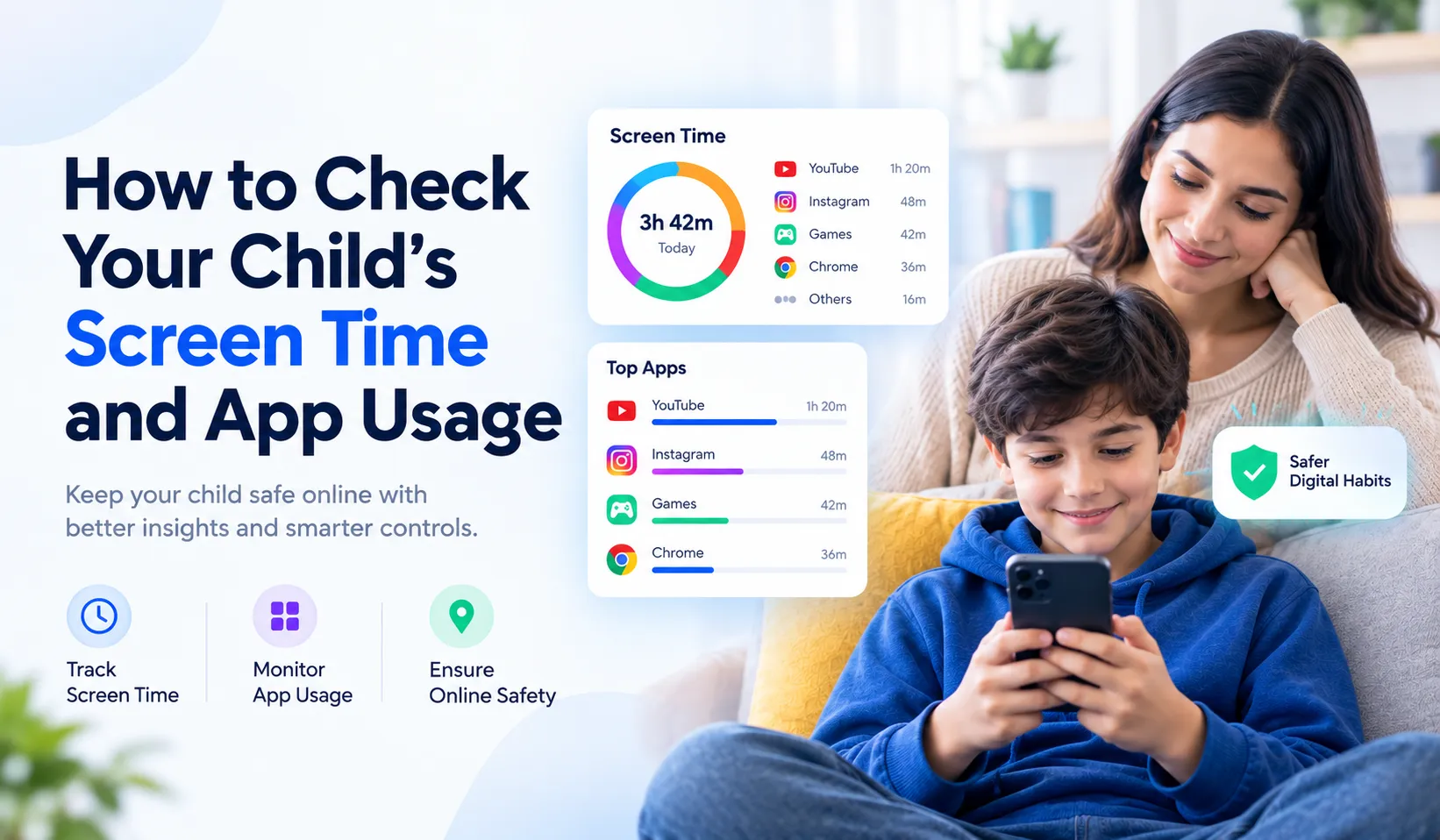
Smartphones and tablets are now an important part of children's everyday lives. Kids use their phones for schoolwork, entertainment, gaming, social media, watching videos, and communicating with friends and family. While technology can provide many benefits, spending too much time on a phone can make it difficult for children to maintain a healthy balance between digital activities, school, sleep, exercise, and family time.
This is why many parents want to know how to check their child's screen time and understand which apps their children use most often. Checking child screen time can help parents identify excessive phone usage and create healthier digital habits without relying only on guesswork.
The good news is that Android devices provide built-in tools that can show screen time and app usage. Parents can also use Google Family Link to manage screen time on supervised devices. For families looking for additional parental monitoring features, a dedicated screen time monitoring app can provide a broader view of device activity.
What Is Child Screen Time?
Child screen time refers to the amount of time a child spends using a digital screen, such as a smartphone, tablet, computer, or other connected device. On an Android phone, screen time can include time spent using social media apps, games, video platforms, browsers, educational applications, and messaging services.
Screen time itself is not necessarily a problem. Children may need devices for education, communication, creative activities, or entertainment. The important thing for parents is understanding how much time their child spends on the phone and what they are doing during that time.
For example, two children may both spend three hours on their phones, but their activities could be completely different. One child may spend most of the time studying or reading, while another may spend several hours gaming or scrolling through social media. This is why looking at both overall screen time and app usage monitoring can be useful.
Why Should Parents Check Their Child's Screen Time?
Regularly reviewing screen time can help parents understand their child's digital habits. It can also make conversations about smartphone use more specific and productive.
- Understand how much time your child spends on their phone.
- Identify apps that are being used for long periods.
- Recognize patterns of excessive gaming or social media use.
- Set reasonable screen-time boundaries.
- Encourage better sleep and study routines.
- Discuss healthy and responsible smartphone habits with your child.
The goal should not be to monitor every moment of a child's life. Instead, parents can use screen-time information as a starting point for open conversations and age-appropriate digital safety rules.
How to Check Screen Time on Your Child's Android Phone
One of the simplest ways to check your child's screen time on Android is through the built-in Digital Wellbeing feature. The exact menu names can vary depending on the phone manufacturer and Android version.
Step 1: Open Settings
Open the Settings app on the Android device. Look for Digital Wellbeing or Digital Wellbeing & parental controls.
Step 2: Open Digital Wellbeing
Tap Digital Wellbeing to view information about device usage. Depending on the device, you may see a chart showing the amount of screen time for the current day.
Step 3: Review Screen Time
The screen-time dashboard can show which apps have been used and how long they have been open. Android's Digital Wellbeing tools can also show how often the device has been unlocked and how many notifications have been received.
Step 4: Check Individual Apps
Tap the usage chart or an individual app to see more information. This can help parents understand whether most of the child's phone usage is coming from games, social media, video apps, browsers, or other applications.
Android also allows app timers to be configured for supported apps. When an app reaches its daily time limit, the app can be paused until the timer resets.
How to Check App Usage on Your Child's Phone
If you specifically want to check app usage on your child's phone, Digital Wellbeing provides an easy starting point. Open Settings, go to Digital Wellbeing, and review the usage chart.
You can look for apps that appear frequently or have unusually high usage. For example, if a particular game or social media application accounts for a large portion of daily usage, it may be worth discussing that usage with your child.
Android's Digital Wellbeing dashboard can show screen time, how often apps are opened, and notifications received. Some Android devices can also provide information about website usage through Chrome.
How to View Your Child's App Activity
- Open the Google Family Link app.
- Select your child's profile.
- Tap Screen time.
- Open the screen-time activity card.
- Review total device usage and available app activity information.
MobMonitor can also allow parents to set limits for individual apps on supported devices. Mobmonitor currently states that app limits can be configured from Mobmonitor App by selecting the child, opening Screen time, choosing Time limits and App limits, and then selecting the desired app and time limit.
How to Set Screen Time Limits for Kids
After you check your child's screen time, the next step is deciding whether any limits are appropriate. Screen-time rules should consider your child's age, school schedule, sleep routine, extracurricular activities, and family expectations.
Instead of suddenly removing access to the phone, parents can establish clear and predictable rules. For example, a child may have different phone rules during school hours, homework time, family meals, and bedtime.
- Set clear daily phone-use expectations.
- Create device-free study periods.
- Keep phones away during family meals.
- Consider a consistent bedtime routine without unnecessary phone use.
- Use app limits for applications that regularly consume too much time.
- Review the rules together and adjust them when necessary.
Google Family Link supports daily screen-time limits and app limits on compatible supervised devices. When a device reaches a configured screen-time limit, access can be restricted according to the settings chosen by the parent.
How Much Screen Time Is Too Much for a Child?
There is no single number that automatically means a child's phone usage is too high. The right approach depends on the child's age, responsibilities, sleep, physical activity, schoolwork, family life, and the type of digital activity involved.
Rather than focusing only on the number of hours, parents should look at the overall pattern. If phone usage consistently interferes with homework, sleep, exercise, family activities, or other responsibilities, it may be time to review the child's digital routine.
This is why monitor child's screen time tools can be useful. They provide information that can help parents identify patterns instead of making decisions based only on assumptions.
Signs Your Child May Be Spending Too Much Time on Their Phone
Screen-time data is only one part of the picture. Parents can also pay attention to changes in everyday behavior and routines.
- Frequently staying up late to use the phone.
- Regularly avoiding homework or other responsibilities because of phone use.
- Spending less time on physical activities or hobbies.
- Using the phone during meals or family activities despite agreed rules.
- Spending unusually long periods on gaming or social media.
- Becoming frustrated when normal phone limits are discussed.
- Frequently checking notifications throughout the day.
None of these signs alone proves that a child has a problematic relationship with technology. They are simply reasons for parents to start a calm conversation and review the child's overall digital habits.
Built-In Android Tools vs. a Screen Time Monitoring App
Android's built-in tools can be useful for basic child screen time monitoring. Digital Wellbeing can provide information about app usage and screen time, while Family Link can provide parental controls for supported supervised accounts and devices.
However, parents who want a broader overview of their child's digital activity may look for a dedicated parental control app or child monitoring app. The right option depends on what information a family actually needs and which features are supported on the child's device.
Built-In Tools
- Useful for basic screen-time information.
- Can show app usage on supported Android devices.
- Can provide app timers and screen-time controls.
- Family Link can provide supervised parental controls.
Dedicated Parental Monitoring Apps
- May combine multiple parental safety features in one dashboard.
- Can provide additional device-activity information depending on the product and device.
- Can make it easier for parents to review multiple safety-related features from one place.
- May provide additional monitoring and management features beyond basic screen-time tools.
What to Look for in the Best App to Monitor Your Child's Screen Time
If built-in tools do not provide everything your family needs, you may consider a dedicated screen time monitoring app. Before choosing one, parents should compare features, device compatibility, privacy practices, ease of use, and pricing.
1. Screen Time Monitoring
A useful parental control solution should make it easy to understand how much time is being spent on the device and which applications are being used.
2. App Usage Monitoring
Parents should be able to identify the applications that receive the most usage. This can help them understand whether a child's phone time is primarily educational, recreational, social, or gaming-related.
3. Parental Controls
Look for tools that help parents create age-appropriate boundaries around device use. App limits, screen-time schedules, and other controls can help families establish consistent routines.
4. Easy-to-Use Dashboard
Parents should not need advanced technical knowledge to understand their child's device activity. A clear dashboard can make it easier to review information and identify changes in usage patterns.
5. Privacy and Responsible Use
Child monitoring should always be used responsibly. Parents should understand what information an application collects, how it is stored, and what permissions are required. Where appropriate, parents should also explain monitoring rules to children and use monitoring tools for safety rather than unnecessary intrusion.
How MobMonitor Can Help Parents Monitor Child Phone Usage
MobMonitor is a parental control and phone monitoring app designed to help parents keep track of children's digital activities. According to the current MobMonitor website, its parental-control features include device and app usage information, screen-time management, location tracking, and other child-safety features.
For parents who are specifically looking for a child phone monitoring app, having several parental-safety features available from one dashboard can make device management more convenient. Instead of checking different settings individually, parents can use the features available in their monitoring solution according to their family's needs.
MobMonitor Parental Monitoring Features
- Screen-time and device usage monitoring
- App usage monitoring
- Live location and location history features
- Social media activity monitoring features
- Browsing and digital activity monitoring features
- Parental control features for children's digital safety
If your main goal is simply to check your child's screen time, Android's built-in tools may already provide useful information. If you want a broader parental monitoring solution with additional features, you can explore whether MobMonitor's available features match your family's requirements.
Want More Visibility Into Your Child's Phone Usage?
Explore MobMonitor and learn how its parental control and monitoring features can help parents support safer digital habits.
Explore MobMonitor →How Parents Can Create Healthy Screen-Time Habits
Technology monitoring works best when it is combined with clear communication. A monitoring app alone cannot teach a child how to use technology responsibly. Parents can use screen-time information as a starting point for conversations about balance, privacy, online behavior, and digital responsibility.
- Create clear family rules for smartphone use.
- Set specific periods for homework and family activities.
- Encourage children to take regular breaks from screens.
- Keep phones away from bedtime when appropriate.
- Talk about online privacy and responsible social media use.
- Review screen-time patterns together instead of using monitoring only as punishment.
- Adjust screen-time rules as the child grows and their needs change.
Screen Time Monitoring Should Be About Safety, Not Secret Surveillance
Parents naturally want to know whether their children are safe online. However, effective parental control should also respect a child's growing independence and privacy.
Whenever possible, explain age-appropriate monitoring rules to your child. Tell them why certain limits exist and what you are trying to protect them from. This can help build trust while still allowing parents to take reasonable steps to support online safety.
Monitoring tools should be used only for legitimate parental or safety purposes and in accordance with applicable laws, device rules, and the rights of the people being monitored.
Frequently Asked Questions About Child Screen Time
How can I check my child's screen time?
On many Android phones, you can open Settings and look for Digital Wellbeing. The dashboard can show screen time and app usage. Parents using Google Family Link can also view supported child app activity and screen-time information from the Family Link app.
How do I check app usage on my child's phone?
Open Digital Wellbeing on a compatible Android device and select the usage chart or an individual app. You can review how long apps have been used and, depending on the device, other usage information.
Can I set a screen-time limit for my child?
Yes. MobMonitor supports screen-time and app limits on compatible supervised devices. Android's Digital Wellbeing also provides app timers on supported devices.
What is the best parental control app for screen time?
The right parental control app for Android depends on the features your family needs. Parents should compare screen-time controls, app usage monitoring, device compatibility, privacy practices, ease of use, and pricing before choosing a solution.
Can a child monitoring app show app usage?
Some dedicated child monitoring apps provide app usage information in addition to other parental-control features. The exact information available depends on the application, device, operating system, permissions, and applicable restrictions.
Is screen time monitoring enough to keep children safe online?
Screen-time monitoring is useful, but it is only one part of digital safety. Parents should also talk to children about privacy, cyberbullying, inappropriate content, unknown contacts, passwords, and responsible social media use.
Final Thoughts
Knowing how to check your child's screen time can help parents better understand how their children use smartphones every day. Android's Digital Wellbeing tools provide a simple way to review screen time and app usage, while Google Family Link offers additional parental controls for supported supervised devices.
For families that need more than basic screen-time information, a dedicated phone monitoring app for parents may provide additional parental safety features in one place. The most important step is to choose a solution that fits your family's needs and use it responsibly.
Whether you use Android's built-in tools, Google Family Link, or a dedicated screen time monitoring app, the goal should be the same: helping children develop healthy, balanced, and safer digital habits.
Protect Your Child's Digital Journey With MobMonitor
Learn more about MobMonitor's parental control and child safety features and choose the tools that best fit your family's digital-safety needs.
Explore MobMonitor →